It’s Monday morning. Your sales lead asks why there have been no new website leads since Thursday. The form has dozens of submissions. The Zap, scenario or workflow that copies them into the CRM is on, and its last run says “success” — but the CRM has nothing new since Thursday.
Nobody got an email. Nothing turned red. Four days of leads sat in a form inbox nobody reads.
That’s an automation failing silently — in Zapier, n8n or Make alike. Below: why “successful” runs can still be broken, the four failure modes behind it, free alert settings for each platform (checked against the official docs), and a monthly health check that needs no monitoring tool.
TL;DR
- Native alerts only catch errors. A run that “succeeds” with blank data, or a trigger that stops firing, won’t alert you on Zapier, n8n or Make.
- Turn on the free alerts today anyway. Zapier notification settings, an n8n error workflow and Make’s email preferences catch expired logins and API errors. Each takes about five minutes.
- Add one “is anything arriving?” check. A daily scheduled count of new records, with an alert when it hits zero, catches the failures alerts can’t see.
Why “it ran successfully” doesn’t mean it worked
Automation platforms judge success at the step level: did each API call return without an error? They don’t know what should have happened in your business.
So “success” can mean any of these:
- A CRM contact was created, but the email field was blank because the form tool renamed
emailtoemail_address. - A filter step stopped every run because a dropdown value changed from “Yes” to “yes”. The filter did its job, so nothing was flagged.
- The trigger hasn’t fired since Thursday. There’s no failed run, because there’s no run at all.
The first two look normal in your run history. The third doesn’t show up anywhere. Built-in alerts catch loud failures and miss quiet ones.
Four ways an automation ends up failing silently in Zapier, n8n or Make
Most silent failures trace back to one of four causes: an expired login, an upstream field change, an empty-data edge case, or a rate limit. Here’s what each looks like and whether native alerts catch it.
1. Expired or revoked logins (auth tokens)
Every app connection is a stored login, and logins expire. Zapier says connections “expire after a given time, such as after a year” (Zapier). Google’s refresh tokens stop working after six months unused, or when a password change touches Gmail-scoped tokens. Self-hosted n8n with a Google Cloud app left in “Testing” status expires tokens in 7 days (Google).
Common trigger: the person who connected the account leaves, and their login gets disabled.
Is it loud? Usually, as an authentication error — but an authentication failure (AccountValidationError) can’t be caught by a Make error handler, and after your set number of consecutive errors Make disables the scenario’s scheduling (Make), and Zapier can turn off a Zap that “errored too many times” (Zapier). If that error email went to an unwatched inbox, you’re left with a switched-off automation and no further warning.
2. API and field changes
Apps rename fields, change dropdown options and retire endpoints. Sometimes that throws an error; often the field mapping just comes through empty. Zapier’s troubleshooting guide flags a related trap: “Dropdown menus understand IDs, not text” (Zapier) — a label change upstream can quietly break a mapping.
Is it loud? Only if the receiving app rejects the data. Make calls this a DataError or BundleValidationError when it does (Make). If the receiving app accepts a blank value, the run succeeds.
3. Empty-data edge cases
A search step finds no matching customer and the workflow carries on with nothing. A webhook arrives with an empty body. A spreadsheet trigger watches a tab someone renamed. None of these is technically an error.
Is it loud? Almost never. Platform settings alone won’t catch it.
4. Rate limits and timeouts
Send a burst of records (a bulk import, a busy sale day) and the receiving API starts refusing requests. Make labels these RateLimitError (HTTP 429) and ModuleTimeoutError for runs past its 40–60 second limit (Make); n8n’s “Timeout Workflow” setting cancels a run after a set time (n8n).
Is it loud? Partly. The failed run errors, but the damage is often a half-finished run: the invoice was created, the welcome email wasn’t. Retries can also create duplicates.
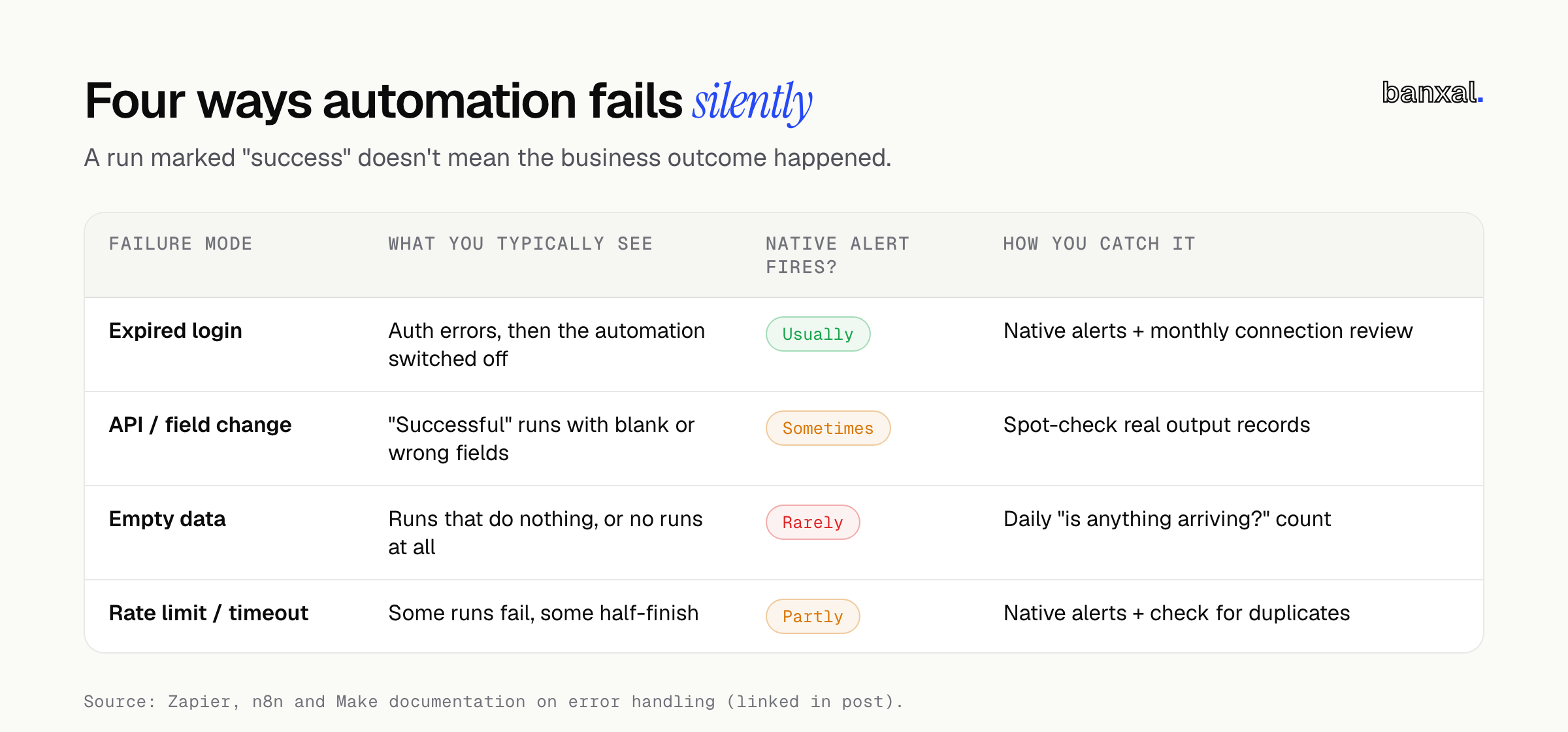
| Failure mode | What you typically see | Does the native alert fire? | How you catch it |
|---|---|---|---|
| Expired login | Auth errors, then the automation switched off | Usually, if alerts are on and someone reads them | Native alerts + monthly connection review |
| API / field change | “Successful” runs with blank or wrong fields | Sometimes | Spot-check real output records |
| Empty data | Runs that do nothing, or no runs at all | Rarely | Daily “is anything arriving?” count |
| Rate limit / timeout | Some runs fail, some half-finish | Partly | Native alerts + check for duplicates |
The 10-minute self-check
Do this now for the automations that would hurt most if they stopped — usually lead capture, payments or invoicing, and customer onboarding.
- Open the run history (Zapier: Zap history; n8n: executions; Make: scenario history). Is the last run as recent as it should be? Leads arriving daily but the last run four days ago means you’ve found a silent failure.
- Open three recent output records in the destination app (CRM contact, invoice, row). Is every field you care about filled in?
- Look for runs that aren’t plain success or plain error. Zapier marks some as “Holding” for “account-related issues, such as high task usage, an account connection issue” (Zapier); Make records warnings and incomplete executions.
- Check your connections. Note which ones belong to people who’ve left or are about to.
- Find out where alerts go today. Whose inbox? Do they still work here? Do they read it?
- Write down an owner for each critical automation: one name who gets the alert and fixes it.
If step 1 or 2 surprised you, set up the alerts below before doing anything else.
Turn on free native alerts today: Zapier, n8n, Make
All three platforms include error alerts at no extra cost. Here’s where to find each, per the vendors’ own docs.
Zapier
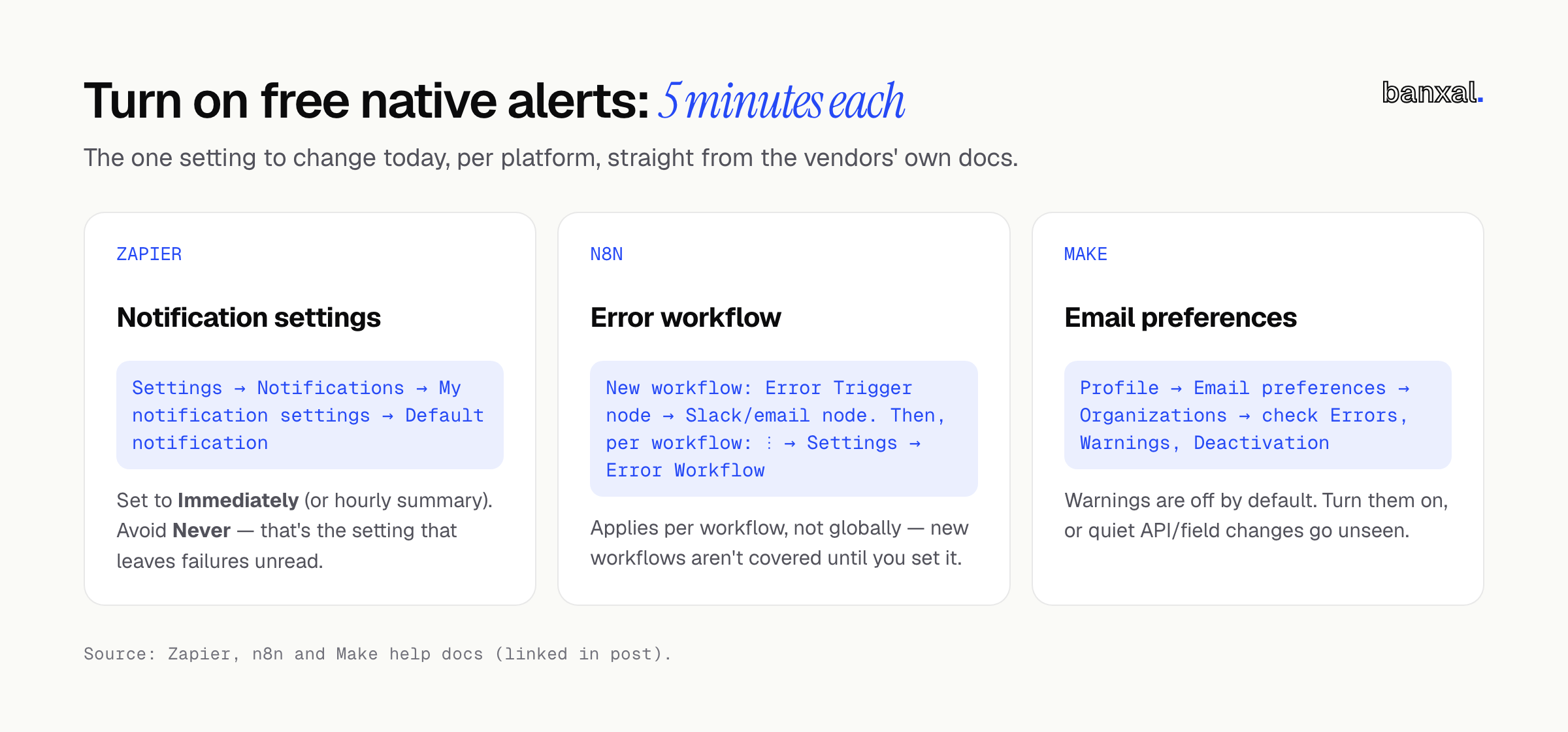
- Go to Settings → Notifications → My notification settings. Under Default notification, click Edit and choose Immediately (one email per error) or Immediately, then hourly summary. Avoid Never (Zapier).
- For your critical Zaps, add a rule under Custom notifications → + Add notification, pick the Zaps or folders, set the frequency and click Add to notifications. Custom notifications aren’t available during a trial.
- Know the gap: Zapier says errors handled by an error handler don’t send notification emails. If you’ve built error handling into a Zap, make that handler send its own alert.
- Optional: route errors to Slack. Zapier’s Zapier Manager app has a New Zap Error trigger with ready-made templates that post each error to a Slack channel (Zapier). If you do this, also set “Send me an email when a Zapier Manager Zap fails” to Always under Notifications → Email subscriptions (Zapier) — so you hear about it if the alert Zap itself breaks.
n8n
n8n’s documented way to hear about failures is an error workflow — a separate workflow that runs when another one fails (n8n).
- Create a new workflow with the Error Trigger node first, then add a Slack, email or Teams node that sends the message. Name and save it (for example “Error Handler”).
- In each workflow you want covered, open the three dots icon in the upper-right, select Settings, choose your handler in the Error Workflow dropdown and Save (n8n). This is per workflow, so new workflows aren’t covered until you set it.
- In the same settings, make sure Save failed production executions is set to save, so you have something to debug.
- Put the useful fields in the alert. The Error Trigger receives the workflow name, the error message, the last node that ran and, if executions are saved, a link to it (n8n).
Bonus: the Stop And Error node lets you “cause executions to fail under certain conditions” (n8n) — use it for empty-data cases, so a search that returns nothing fails on purpose and triggers the error workflow instead of running on.
Make
- Go to Profile → Email preferences → Organizations and check Errors, Warnings and Deactivation for each organization (by default you only get errors and deactivations). Make emails immediately, then a digest after 5 minutes for errors and 15 for warnings (Make).
- In each important scenario, click the gear icon in the Scenario Builder to open scenario settings (Make):
- Turn on Store incomplete executions, so failed runs are saved “so the data isn’t lost”.
- Review how many consecutive errors Make allows before deactivating. Note that “if a scenario starts with an instant trigger, the setting is ignored and the scenario is deactivated immediately once the first error has occurred.”
- Think before enabling Discard data if storage is full. It keeps the scenario running, but it throws away the failed data.
When native alerts aren’t enough
Native alerts only answer one question: “did a step throw an error?” They can’t tell you:
- The trigger stopped firing. No run, no error, no alert.
- The output is wrong. Blank fields and skipped records look like success.
- Volume dropped. Twelve leads a day falling to two is a business problem, not a technical error.
- Nobody is reading the alerts. An inbox that gets 40 error digests a week gets ignored.
The fix needs no new tool: a heartbeat check. Build one small scheduled automation that runs every morning, counts yesterday’s new records in the destination (CRM contacts, invoices, rows), and alerts if the count is zero or far below normal — to the same channel as your error alerts, and on a different connection where possible, so one expired login can’t silence both.
Dedicated monitoring tools exist, and some teams need them. You’ve probably outgrown DIY when:
- You’re running enough business-critical automations, or they’re spread across enough platforms, that no one person can keep track of them from memory.
- Automations move money, sync two systems both ways, or touch customer data you’re accountable for.
- Nobody owns them, or the person who built them has left.
At that point the fix is usually less “add monitoring” and more “rebuild the fragile parts properly”: safe retries, validation before writing, and logs a human can read. Our guide on choosing between Zapier, n8n or an AI agent covers when a workflow has outgrown its platform.
A simple monthly automation health-check
Put a 30-minute recurring meeting on the calendar with the automation owner and work through this list.
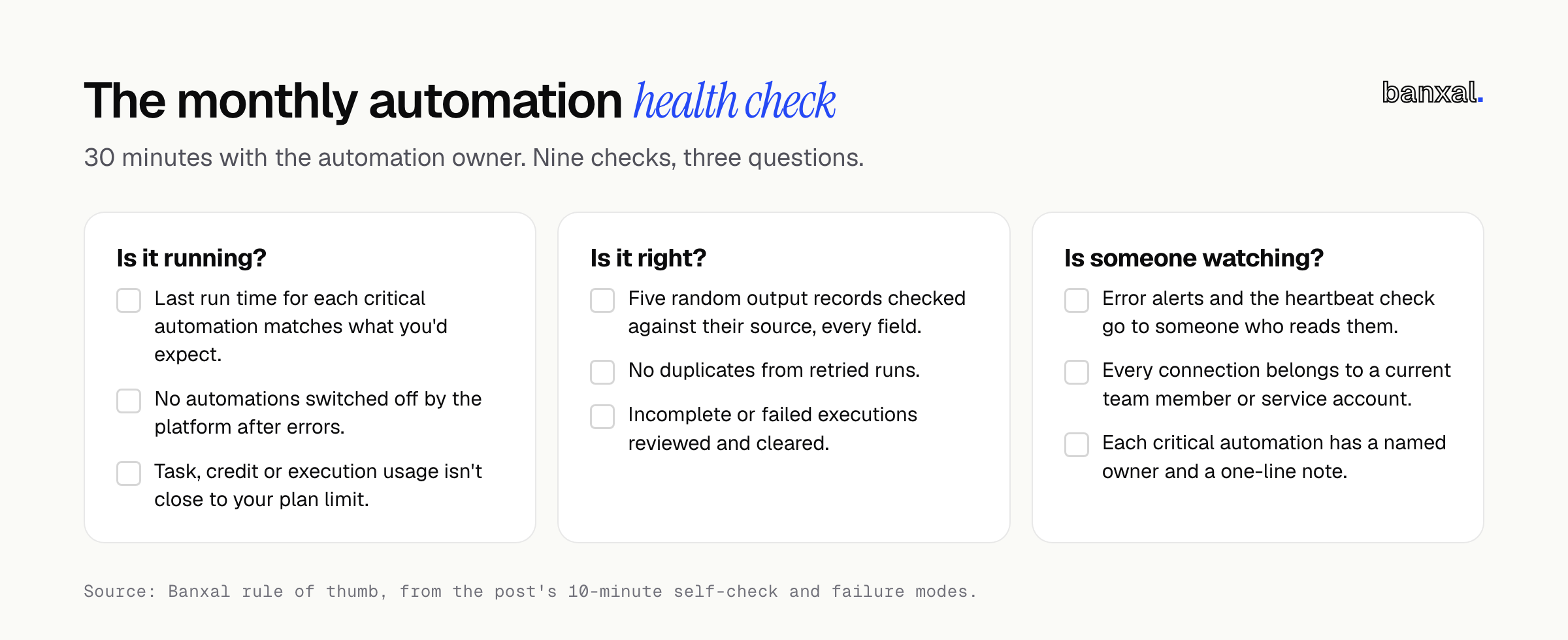
Is it running?
- Last run time for each critical automation matches what you’d expect.
- No automations switched off by the platform (Zapier and Make both do this after errors).
- Task, credit or execution usage isn’t close to your plan limit. Make stops scheduling immediately when you run out of operations (Make).
Is it right?
- Five random output records checked against their source, every field.
- No duplicates from retried runs.
- Incomplete executions (Make) or failed executions (n8n) reviewed and cleared.
Is someone watching?
- Error alerts and the heartbeat check still go to a person who works here and reads them.
- Every connection belongs to a current team member or a shared service account.
- Each critical automation has a named owner and a one-line note on what it does.
Want a second pair of eyes on your automations?
If this check turned up more than you’d like, or there’s a Zapier, n8n or Make setup nobody wants to touch, that’s what our automation & integrations team does: audit what you have, add alerts and heartbeat checks, rebuild the fragile parts, and look after it ongoing if you want. Tell us what you’re running and we’ll tell you honestly whether it needs more than the free settings above.
FAQ
Why did my Zapier automation stop working with no notification?
The three usual causes: error notifications are set to Never or go to an unread inbox; Zapier turned the Zap off after repeated errors; or the trigger stopped firing, so there was no error to report. Check Zap history and Settings → Notifications first.
How do I get alerted when an n8n workflow fails?
Create an error workflow that starts with the Error Trigger node and sends a Slack message or email. Then select it under Error Workflow in each workflow’s settings. It doesn’t apply automatically to new workflows (n8n).
Does Make tell me when a scenario fails?
Yes. By default Make emails you about errors and about scenarios it deactivates. Warnings are off unless you enable them under Profile → Email preferences (Make). Scenarios with instant triggers are deactivated on the first error, so keep deactivation emails on.
How do I monitor business automations without a monitoring tool?
Combine the free native error alerts with a daily heartbeat automation that counts yesterday’s new records and alerts on zero, plus the monthly checklist above. For most small teams, that covers loud and quiet failures.
Has an automation of yours ever failed quietly for days? What gave it away in the end? Tell us in the comments.